
Why print-ready PDF menus still matter for restaurants
Digital menus and QR code menus are essential, but printed and downloadable PDFs remain critical for real-world operations. Printed menus are used for walk-in guests, takeout bags, corporate catering, press kits, and local delivery partners. A consistent print-ready PDF keeps your branding intact, reduces errors at the pass, and speeds service during busy shifts. When your downloadable PDF is generated from the same live menu customers see online, you avoid mismatched prices, missing allergens, or out-of-date specials that frustrate staff and customers.
Why consistency matters
If your website, QR code menu, and printed handouts differ, staff must double-check prices and availability during rush hours. A single source of truth — your EasyMenus live menu — reduces mistakes and saves time in the kitchen and at the POS.
Common use cases for PDFs
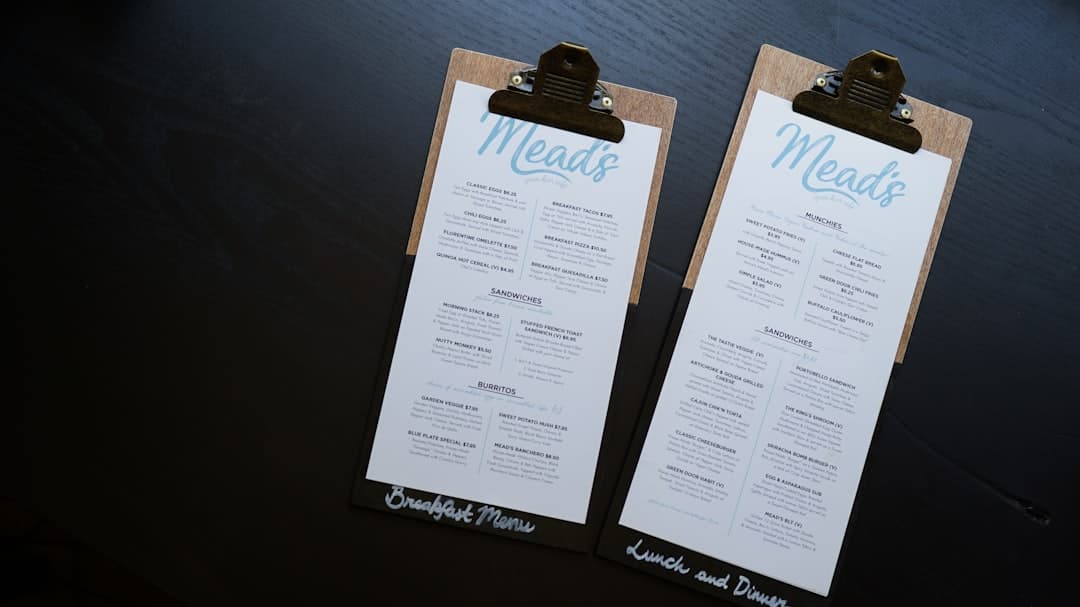
Menus for front-of-house, laminated tabletop menus, takeout bag inserts, downloadable menus for customers, catering menus for corporate clients, and press/media kits. Each use has different layout needs (single-page handout vs multi-page prix fixe).
How EasyMenus helps
EasyMenus' PDF builder and professional export wizard let you convert your live online menu into A4/A5 print-ready PDFs, with brand customization and live preview so printed files reflect exactly what customers see online.
How it works: step-by-step online → PDF builder workflow
Why this first: before you tweak typography or paper, understand the conversion workflow so your exported PDFs are accurate and repeatable. The general flow is: prepare the online menu, choose a template, adjust layout and branding, preview, and export. Below are practical steps you can follow the first time you create a print-ready PDF and every time you need an update.
Learn more: How to Build a Print-Ready PDF Menu from Your EasyMenus Account
Step 1 — Prepare the live menu
Start with the online menu as your source of truth. Confirm item names, prices, modifiers, availability windows, and allergen notes. If you imported a PDF earlier, run the AI-powered menu import to extract structured items (the AI import is designed to reach industry-leading accuracy), then quickly scan categories and prices for edge cases like seasonal items or bundled offers.
Step 2 — Pick a template and page size
Open the PDF builder and choose a printable template (A4/A5 or custom sizes). Templates control column layout, header placement, and whether images are included. Pick a template that matches the distribution: single-sheet handout (A4/A5), folded menu, or multi-page PDF for full menus.
Step 3 — Brand and layout settings
Customize colors, logo placement, fonts, and spacing in the builder. Set margins, line spacing, and whether to include images per item. Use real-time preview to confirm how page breaks and wraps look. If you rely on brand fonts, use the closest available option to keep print output consistent.
Step 4 — Optimize images and assets
Decide whether to include images. For print, use high-resolution images (300 DPI recommended) and choose the 'with images' export only when file size is acceptable for distribution. The builder offers a 'without images' option for compact PDFs appropriate for POS and quick printing.
Step 5 — Preview and export
Use the live preview to check page breaks, orphaned lines, and spacing. Export a professional PDF from the builder; choose A4 or A5 as needed, and select with/without images. Save the template so you can reuse the same look for future exports.
Photo by 2H Media on Unsplash
Design and layout best practices for print-ready menus
Design for readability and for the constraints of paper. Printed menus must be legible under restaurant lighting and quick to scan by servers. Below are layout, type, and image best practices that keep printed menus easy to read and on-brand.
Learn more: Choosing the Right Menu Template: Sizes, Paper, and Accessibility
Paper size, margins, and safe zones
Choose the right paper size. A4 and A5 are common; folded A4 becomes an easy handout. Keep a 0.25–0.5 inch (6–12 mm) safe margin from the trim edge to prevent cut-off text. Use the builder's margin settings and live preview to detect problems before printing.
Typography and hierarchy
Use strong typographic hierarchy: dish name (bold, larger), price (aligned right or inline), and description (smaller, readable). Avoid decorative fonts for body text. Aim for at least 10–12 pt for body copy and 14–18 pt for item names depending on menu density.
Images and white space
Images add appetite appeal but increase file size and can clutter crowded menus. Use one hero image per section or small thumbnails for signature items. Prioritize white space to speed scanning—crowded menus slow service decisions during the dinner rush.
Colors and print considerations
Design in RGB for on-screen preview but confirm how colors translate to print—paper and printers shift colors. Stick to brand color accents rather than full-color backgrounds for better legibility and faster prints.
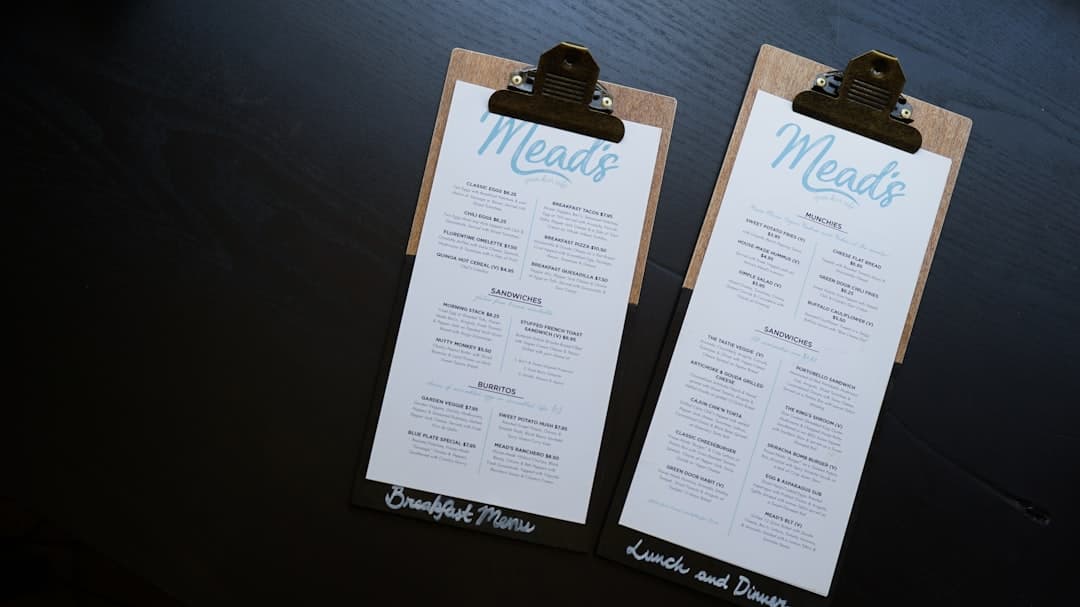
Photo by Catherine Heath on Unsplash
Optimize your online content so the PDF looks its best
The PDF is only as good as the source content. Optimize names, descriptions, categories, and images in the online menu so exports require minimal manual tweaking. This saves time and keeps printed menus aligned with what you sell during rushes or when items go out of stock.
Learn more: Optimize Your Online Menu for the Best-Looking PDF (Images, Layout, Typography)
Clean up item data
Use short, clear item names and concise descriptions. Avoid long marketing copy in the description field—short bullets help servers and speed scanning. Ensure pricing and modifiers are set correctly in the live menu so the export pulls accurate numbers.
Use categories and ordering for print logic
Arrange categories in the order customers expect for the printed menu (e.g., Starters → Mains → Sides → Desserts → Drinks). Use the menu builder to hide online-only items or to swap visible categories for different dayparts.
Image sizing and resolution
Replace low-res images with print-quality photos where you plan to include pictures. For print, provide images at 300 DPI and crop them in the CMS so the builder uses the correct aspect ratio.
Multilingual menus and translations
If you serve tourists or multilingual communities, use EasyMenus' multilingual support to generate translated PDFs. Translate the online menu first, then export per language to keep downloadable PDFs consistent with the QR code and online experience.
Automating PDF exports and repeatable workflows
Create repeatable processes so front-of-house and marketing always have the right PDF without last-minute editing. Automation can mean saving templates, scheduling exports, or embedding PDF generation into your shift-change checklist. Below are practical automation strategies you can implement immediately.
Learn more: Automating PDF Versions for Daily Specials, Dayparts, and Seasonal Menus
Save export templates
Save the PDF template (layout, brand settings, with/without images) you use most. Reuse that saved template whenever prices or availability change—this keeps look-and-feel consistent and shortens the export process to a few clicks.
Version control and naming conventions
Adopt clear file naming (e.g., 'Dinner_Menu_A4_v2026-02-17' or 'Takeout_Menu_EN_2026-02-17') so staff fetch the latest PDF instantly. Store versions in a shared folder (Google Drive, Dropbox) or on your internal server with access controls for marketing and FOH.
Scheduling and automated distributions
Where available, use the PDF builder's scheduling or export features to produce daily or weekly PDFs for specials and dayparts. If built-in scheduling isn’t part of your plan, implement a lightweight automation: save the template then have a weekly task for exports, or use a simple script or integration (if you have IT support) to pull the latest PDF from your EasyMenus account.
Hands-free options for busy shifts
For restaurants in tourist areas or with frequent menu changes, publish a ‘print-ready’ folder with one-click downloads for servers and marketing. Combine that with a short SOP: export → upload to shared drive → notify staff via Slack or SMS group.
FAQ: Common questions about online-to-PDF menu exports
Quick answers to the questions restaurant owners ask most often when creating print-ready PDFs from their live menus.
Can I export the exact live menu as a print-ready PDF?
Yes. The PDF builder converts your live EasyMenus menu into a printable file. Use the builder’s live preview to confirm how online categories, prices, and descriptions are rendered on paper before exporting.
What page sizes and formats are supported?
EasyMenus’ professional export wizard supports common print sizes (A4 and A5) and multi-page PDFs. Choose with or without images depending on your distribution needs.
How do I ensure print quality for photos?
Use high-resolution photos (300 DPI) and the builder’s image settings. For dense menus, consider removing images to keep text readable and file sizes small.
Can I generate PDFs in multiple languages?
Yes. EasyMenus supports multilingual menus in 16 languages. Translate the online menu and export a PDF per language so each downloadable file matches the user-facing version.
How do I handle daily specials or short-term price changes?
For frequent changes, use saved templates and a clear naming convention. If you need daily PDFs (e.g., breakfast vs dinner specials), automate exports where possible or make it part of the morning/shift checklist to export and distribute the updated file.
Are PDFs editable after export?
Exported PDFs are final print-ready files. If you need to change content, update your live menu in EasyMenus and export a new PDF. Because the builder is connected to your live menu, this approach avoids manual edits and version drift.
How large will my exported PDFs be?
File size depends on images and resolution. Exports without images create compact PDFs suitable for web and fast downloads. Include high-res images only when necessary for printed collateral.
Can I produce both downloadable PDFs and QR code menus from the same source?
Yes. Because the PDF builder uses your live online menu as its source, the same content powers downloadable PDFs, QR code menus, and on-screen ordering—keeping everything consistent across channels.
Conclusion
Print-ready PDFs are a small operational detail that delivers big benefits: consistent branding, fewer customer or staff errors, and faster service. Treat your EasyMenus live menu as the single source of truth, pick and save a template that matches your operational needs, and put a simple export routine in place so front-of-house and marketing always have the current files they need. When you optimize the online menu, use the PDF builder's preview and export tools, and adopt a repeatable naming and distribution workflow, printable menus become an effortless extension of your digital ordering experience.
Step-by-step: Build a print-ready PDF from your EasyMenus account
Set up automated PDF versions for specials and dayparts