
Automating PDF Versions for Daily Specials, Dayparts, and Seasonal Menus
Keeping printed and downloadable menus aligned with your live digital menu saves time, reduces mistakes, and keeps staff and customers happy—especially during daily specials, brunch/lunch/dinner dayparts, and seasonal changes. This post shows a practical EasyMenus workflow to automate PDF menu exports using template presets, tags, and scheduled exports so you can publish the right PDF when you need it.
Pro tip: Use EasyMenus’ template presets and tags to filter content—save time by reusing the same master menu for all PDF variants.
Why this matters: printed PDFs often lag behind your live menu. When your daily specials change or you switch to a dinner menu, mismatched PDFs create frustrated servers, incorrect orders, and refunds. Automating PDF exports ensures the right file is always available for customers, staff, and printers.
Operational wins you’ll see: faster staff onboarding for shifts (servers find the current specials in one place), fewer order errors during peak service, and lower design/printing costs because you only produce what you actually need.
Search intent alignment: If you’re looking to automate pdf menu exports or create a daily specials pdf menu and scheduled menu pdfs for dayparts or seasons, the steps below map directly to operational tasks you do every day.
Start by building a small library of PDF templates and presets in your PDF Builder. Templates capture layout (single-column vs. two-column, image placement), while presets store size, paper margins, fonts, and whether images are included. Think of templates as the look, presets as the export settings.
Add tags to the menu items or categories to control what appears in each variant. For example: tag items as "daily-special", "brunch", "lunch", "dinner", "fall-seasonal". Tags let you reuse the same master menu and quickly filter content for each PDF.
1) Create 2–4 templates: Quick Specials (one-sheet), Daypart Menu (compact), Full Seasonal Menu (multi-page). 2) Create export presets for A4/A5 and printer-ready CMYK settings. 3) Add tags to items and categories in your EasyMenus menu (daily-special, brunch, dinner, seasonal). 4) Use the PDF Builder’s filter option to preview each variant and save it as a named preset (e.g., "Brunch_A5_NoImages"). 5) Test by exporting a one-off PDF and check layout on mobile and print.
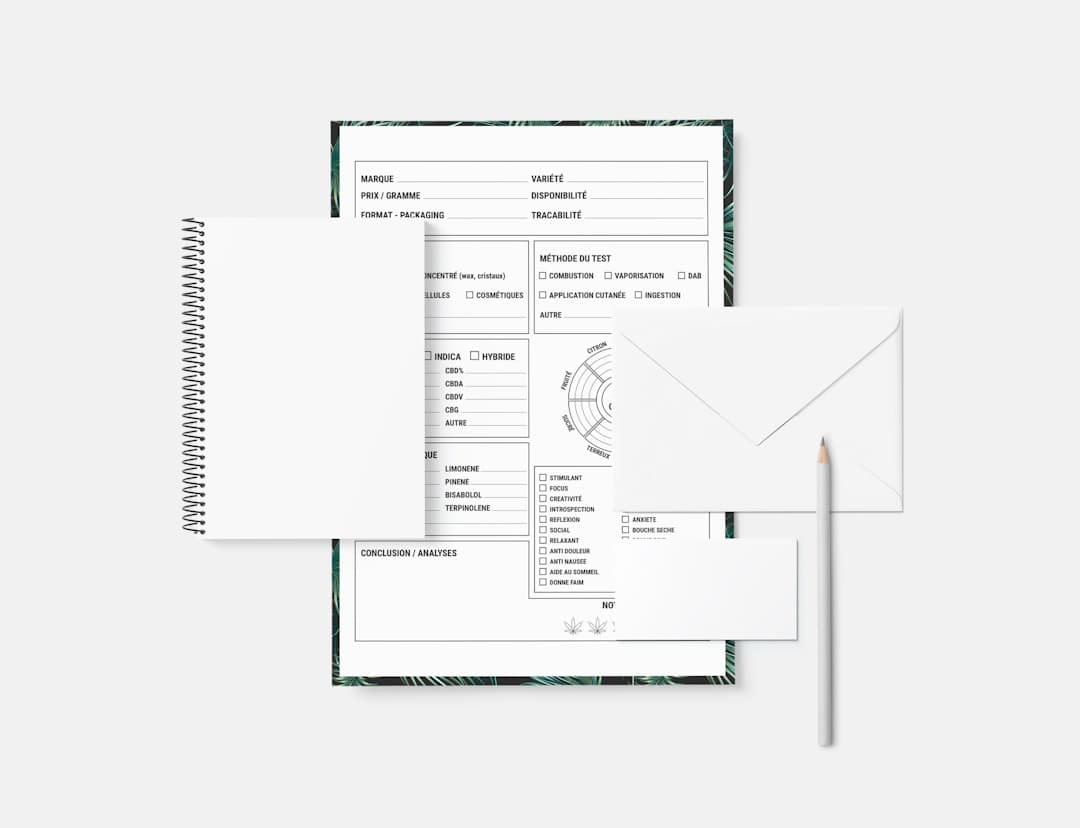
For a comprehensive overview, see our guide: Print-Ready PDF Menus & Templates (Online → PDF Builder)
A consistent naming convention prevents confusion across staff, your CMS, and print vendors. Good names include the menu type, effective date, and version: e.g., "DailySpecials_2026-02-18_v1.pdf" or "Dinner_Daypart_2026-W08_v2.pdf".
Version control basics: keep exports immutable—never overwrite a published file with the same name. Instead increment the version (v1 → v2) or add a timestamp. Store previous exports in an archive folder for audits and quick rollbacks.
Automated scheduled exports should include the date the file is intended to represent, not the export timestamp. For recurring dayparts, use a schedule name like "Brunch_Weekly_Sun-Sat" and export with the day’s date embedded.
- Start with the menu type (DailySpecials, Brunch, Dinner, Seasonal). - Add ISO date (YYYY-MM-DD) or week (YYYY-Wxx). - Append a short region code if you manage multiple locations (NYC, SFO). - Add version suffix when making changes (v1, v2). Example: DailySpecials_NYC_2026-02-18_v1.pdf
Related: How to Build a Print-Ready PDF Menu from Your EasyMenus Account
Warning: Don’t overwrite published PDFs. Increment versions or add timestamps to prevent confusion for staff and printers.
Use scheduled exports to produce a seasonal menu pdf, a daily specials pdf menu each morning, or daypart PDFs that switch at set times. Configure the export preset and template once, then set the recurrence (daily, weekly, or seasonal start/end dates).
Automate distribution: have scheduled exports publish to a protected folder on your website, push to your POS or order confirmation emails, and add direct links to your socials. You can also connect scheduled exports to your print vendor via SFTP or automated email if the vendor supports it.
1) Select the "DailySpecials" preset and template. 2) Filter by tag "daily-special". 3) Choose export format (A4/A5) and image settings. 4) Set schedule: daily at 05:00 (before lunch/dinner prep). 5) Set destination: website asset folder + staff Slack channel + printer email (if doing same-day print runs). 6) Test one scheduled run and verify links and filenames.
Related: Optimize Your Online Menu for the Best-Looking PDF (Images, Layout, Typography)
Think in channels: customer-facing PDFs should live on your site (download link or embedded viewer) and be referenced from table tents or QR code menus. Staff-facing PDFs (kitchen ticket copies, server cheat sheets) can be stored in an internal drive or pushed to a staff-only Slack/Teams channel.
For social posts, link to the hosted PDF or create a short image/gif from the exported PDF for Instagram and Facebook. Keep a short URL or QR code that points to the latest scheduled PDF so print materials and socials never need updating when the content changes.
For print runs, batch exports reduce setup time. Use your archived exports as proofs the printer can reference. When ordering physical prints, include the exact filename and version so the vendor prints the right file.
- Host the master PDF in a web-accessible folder with a permanent permalink. - Update the QR code on table tents to point to the permalink rather than the file name. - Push staff copies to an internal folder and tag the file with shift/handover notes. - For same-day prints, send the export with the filename and version to your print partner and confirm receipt.
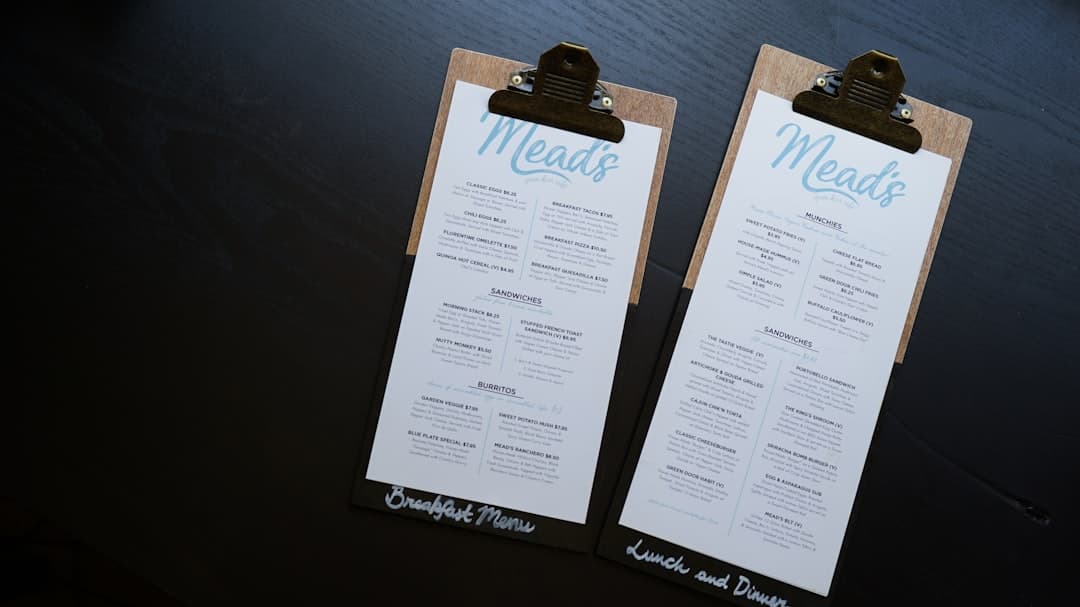
Schedule a monthly audit to remove outdated seasonal PDFs and verify that your scheduled menu pdf exports still match live pricing and availability. Use archived exports to track what was served on any given date—helpful for liability or accounting checks.
If you serve tourists or have multilingual menus, create language-specific presets and include the language code in filenames (e.g., Dinner_EN_2026-03-01_v1.pdf). EasyMenus’ multilingual support makes it efficient to generate seasonal menu pdfs in multiple languages without rebuilding layouts.
Best practice: keep a single source of truth—the master digital menu. Tags, templates, and scheduled exports should all read from that source so updates propagate reliably.
Automating your PDF variants for daily specials, dayparts, and seasonal menus saves time, reduces mistakes, and makes handoffs between kitchen and front-of-house predictable. Start with disciplined templates, consistent tags, and a clear naming/versioning scheme. Use scheduled exports to produce the right PDF at the right time and distribute files via permanent links and staff channels. When set up this way, your PDFs become reliable operational tools—not one more thing to worry about.