
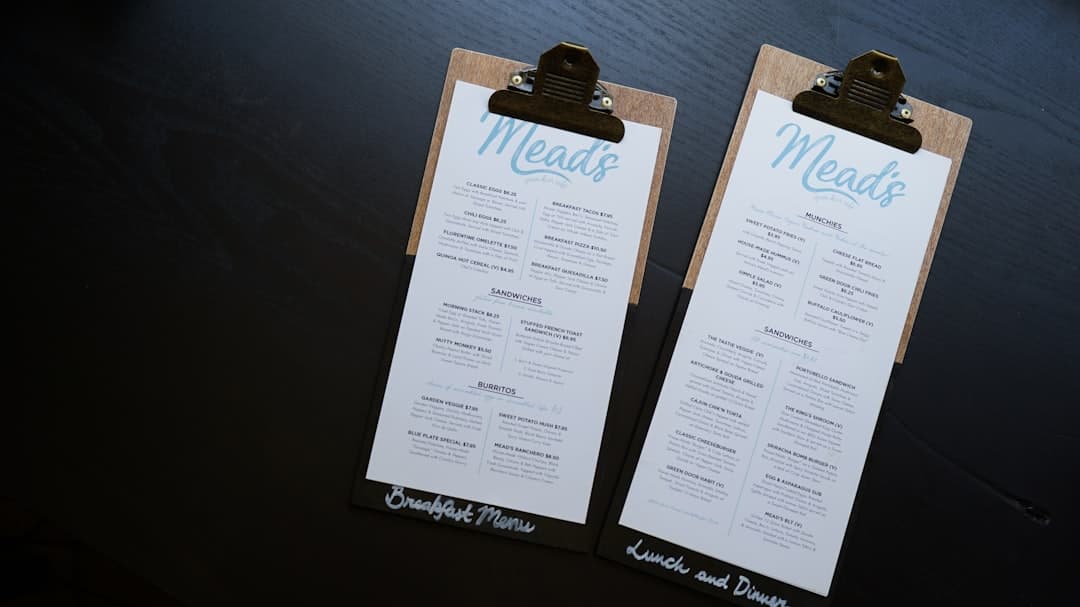
How to Build a Print-Ready PDF Menu from Your EasyMenus Account
Turning your live EasyMenus digital menu into a professional, print-ready PDF should be fast and error-free. This step-by-step walkthrough shows you how to choose templates and paper size, set bleed, add allergen icons and translations, include QR codes and branding, and export the right files for printers and for web use.
Pro tip: If you already have a PDF or scanned menu, use EasyMenus’ AI-powered import to extract items and speeds up edits before exporting a print-ready PDF.
Why this first: the template, paper size, and bleed determine how your menu will look on a real sheet and whether the printer can trim it correctly. Choosing the right combination up front prevents layout shifts and unexpected cropping during printing.
In EasyMenus, start in the PDF export wizard and pick a template that matches your service style—single-panel takeout, bi-fold, tri-fold, or multi-page restaurant menus. Templates are optimized for readability and print margins so your text and images don't sit too close to the edge.
Paper size options commonly include A4 and A5 (Europe-friendly) and standard U.S. sizes like Letter and Tabloid. If your restaurant orders from a local commercial printer, confirm the exact paper size they expect before exporting.
Set a bleed (usually 3–5 mm / 0.125–0.25 in) if your design has background colors or images that run to the edge. The bleed gives the printer a small margin for trimming and prevents thin white edges on the finished piece.
Open PDF export → Template tab → Select layout (single/bi-fold/tri-fold) → Paper size drop-down → Enter bleed value (default 3 mm) → Preview.
Related: Choosing the Right Menu Template: Sizes, Paper, and Accessibility
Why this matters: clear allergen labeling and translated menus protect customers and reduce order mistakes. For busy shifts, icons are faster for servers and guests to scan than long disclaimers.
Add standardized allergen icons for common allergens (e.g., gluten, dairy, nuts, shellfish). Place icons next to items or in the item detail panel so they remain visible when exported to PDF.
If your menu serves tourists or a multilingual neighborhood, enable EasyMenus’ multilingual options. You can export a single bilingual PDF (side-by-side or separate pages per language) or generate language-specific PDFs. EasyMenus supports high-quality AI translations with editable output—review translations for local phrasing and ingredient names.
Confirm each menu item has the correct allergen icons; verify icon legend appears on the PDF; review translated item names and prices; ensure special characters display correctly in the chosen font.
Related: Optimize Your Online Menu for the Best-Looking PDF (Images, Layout, Typography)
Why this matters: adding a QR code to your printed menu connects guests to updates (daily specials, ordering, loyalty). Branding keeps the printed piece consistent with your online presence.
Place an EasyMenus QR code that links back to the live menu or ordering page. For dine-in, include a small QR next to the table number or at the bottom corner; for takeout, make the QR prominent on the receipt or bag insert.
Use your brand colors, logo, and preferred fonts in the PDF builder. EasyMenus lets you toggle images on/off for the PDF export—turn off high-resolution images to reduce file size for emailed menus, or include full images for printed designer menus.
Keep contrast and legibility in mind: avoid light text over busy photos and ensure small type remains readable after scaling for print.
Logo: top-left or centered header. QR code: bottom-right or back page. Photo: use one hero image per section; avoid filling entire page with low-resolution images.
For a comprehensive overview, see our guide: Print-Ready PDF Menus & Templates (Online → PDF Builder)
Why this matters: printers and on-screen PDFs have different technical needs. Use the right settings and file types to ensure color accuracy and crisp text.
For commercial printing, export as a high-resolution PDF/X or print-optimized PDF with CMYK color profile, embedded fonts, and full bleed included. Select 300 DPI for images and use crop/trim marks if your printer requests them.
For web/email distribution, choose an optimized PDF: 72–150 DPI images, RGB color, and smaller file size. EasyMenus’ builder offers 'with images' and 'without images' options—use the smaller variant for quick downloads or mobile sharing.
If your printer requests specific requirements (PDF/X-1a, ICC profile, or separate bleeds), download the printer-ready option and include your contact note for the printer in the export: page order, number of copies, and any finishing instructions (fold type, lamination).
Commercial printer: PDF/X, CMYK, 300 DPI, bleed + crop marks. Web/email: standard PDF, RGB, 72–150 DPI, no bleed, smaller file.
Warning: Don’t skip a physical printer proof—on-screen colors and paper finish often look different once printed.
Before you hit Export, run a proofing pass. Printing errors are costly—catching them in the digital stage saves time and money.
Use this checklist to catch common issues and follow troubleshooting tips if something looks off.
• Images: high-resolution (300 DPI for print), correct crop, no pixelation. • Pricing: confirm prices match POS/ordering, including cents and currency symbols. • Allergens & labels: icons present and legend included. • Translations: verified by staff or native speaker; check diacritics. • Contact & legal: business name, address, phone, VAT/tax notice, and any mandatory legal text. • Layout: no orphaned headings, consistent spacing, readable font sizes (min 9–10 pt body for print). • QR codes: test them from multiple devices; ensure they link to the live EasyMenus page. • Bleed & margins: inspect preview with trim/crop marks enabled. • File settings: CMYK vs. RGB, PDF/X if required, and embedded fonts.
Issue: fonts shift or fallback on export — Solution: embed fonts or choose a web-safe font before exporting. Issue: images look low-res in the PDF — Solution: replace with higher-resolution images (300 DPI) and re-export. Issue: QR code doesn’t scan — Solution: increase size, add quiet zone (clear space), and test again. Issue: colors print too dark or different — Solution: export with CMYK profile, request a printer proof, and adjust image brightness. If you run into repeated issues, export a printer-ready PDF and contact your printer with the exact settings; EasyMenus' export wizard guides you through standard options for most printers.
A clean, print-ready PDF menu closes the loop between your digital operations and in-person guest experience. Follow the steps above to select the right template, verify allergens and translations, include QR codes and branding, and export the correct file for printers or web. Proof thoroughly—especially pricing and allergen labels—and test QR links before you print. If you use EasyMenus, the PDF export wizard, brand options, and multilingual tools simplify the process so you can get professional menus in minutes.