
Add Menu-Worthy Photos and Logos That Convert on Google Maps
Your Google Business Profile is often the first bite guests take of your restaurant. The right photos and a clear restaurant logo help hungry searchers choose you in seconds. This guide shows you how to curate, prepare, and maintain a photo set that sells your signature dishes, ambiance, and team—so more people tap Directions, Call, or Order.
Pro tip: Schedule your photo session before lunch service for clean tables and soft natural light.
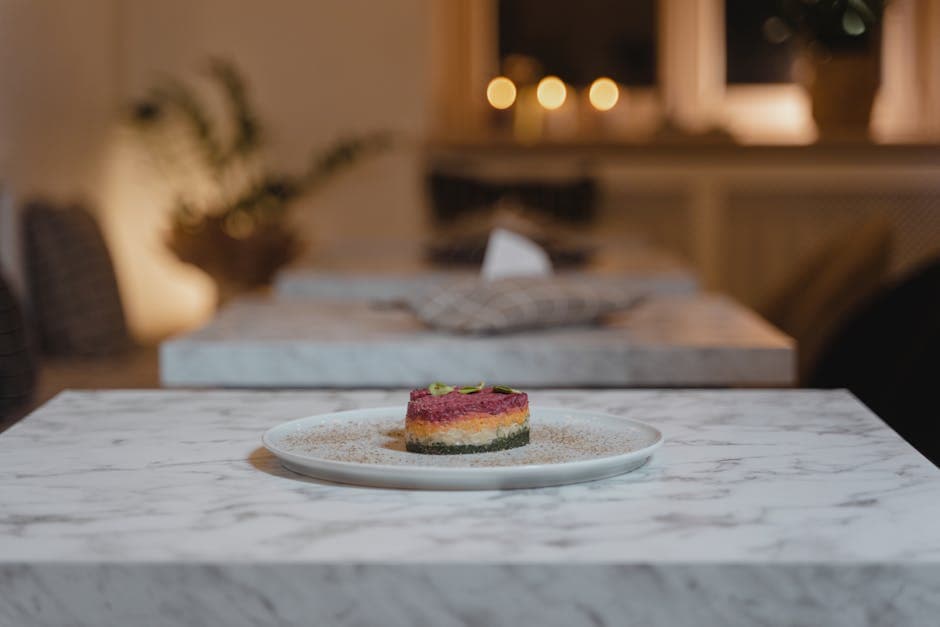
When people search on Google Maps, they scan images first. Strong visuals reduce decision friction by answering two questions fast: What looks good here? What’s the vibe? High-quality restaurant photos on your Google Business Profile (GBP) help you win the tap over nearby competitors.
Think of GBP photos as your always-open storefront: they appear on Maps and Search, in the image carousel, thumbnails, and within your listing’s overview. Clear, on-brand visuals increase confidence to book a table, walk in, or start an online order—especially for tourists and busy locals comparing options during the dinner rush.
In this post, you’ll learn a practical photo strategy for restaurants: which images to capture (signature plates, ambiance, team), how to prep files (JPG/PNG, color, crops), the best upload sequence, and how to keep everything fresh and on-brand. If you’re looking to add photos to Google Maps for your restaurant today, you’re in the right place.
• Faster decisions: Searchers get an instant feel for your plates and space. • Better brand recall: A clean restaurant logo on Google Maps makes you recognizable across Maps, your website, and your QR code menu. • Stronger conversion: More taps on Call, Directions, and Order because guests trust what they see.
Related: Claim and Verify Your Restaurant on Google Maps: Step-by-Step
Your goal is coverage, not clutter. Curate a tight, high-quality set that shows what guests value most. Aim for a balanced mix you can shoot in one session and refresh monthly.
1) Signature dishes (4–6): Hero your top sellers and new specials. Plate for clarity, not just artistry. Include a close-up and a wider context shot. 2) Beverages (2–3): One hero cocktail, one coffee/tea, and a group shot if drinks are a draw. 3) Ambiance (3–5): Dining room with guests (faces optional), bar, patio, and a wide shot that conveys lighting and seating. 4) Team (2–3): Chef plating, kitchen pass in motion, friendly front-of-house moment. Human warmth builds trust. 5) Exterior (2): Day and dusk with clear signage—helps guests recognize you from the street. 6) Details (1–2): A sizzling pan, latte art, or a branded napkin moment. These add personality without noise.
• Timing: Shoot before service for a clean room and natural light. Turn on all house lights you use at peak service. • Styling: Wipe tables, polish glassware, remove clutter (extra menus, POS paper rolls, sanitizer bottles). • Plates: Choose photogenic portions. Avoid steam-heavy items that fog lenses. • Surfaces: Use your real tables to match the in-person experience. • Consistency: Keep brand colors and props consistent with your menu and website. • Permissions: If photographing guests or staff faces, get verbal OK and follow your internal policy.
For a comprehensive overview, see our guide: Google Business Profile Setup for Restaurants (2026 Guide)
You don’t need fancy gear—your phone plus good light works. What matters is clean files, consistent crops, and a crisp logo that’s readable at thumbnail size.
• Format: Use JPG for food/people (lighter files, smooth gradients). Use PNG for your restaurant logo to keep edges crisp. • Color: Export in sRGB for predictable color on mobile screens. • Size: Export large enough to stay sharp on today’s phones. A practical rule: at least 1200 px on the shortest side. Avoid overly heavy files that slow uploads. • Orientation: Square or slight-vertical crops tend to display well in thumbnails. Keep critical content centered. • Consistency: Keep brightness and white balance consistent so your grid feels cohesive.
• Keep it simple: Solid marks, few colors, high contrast. Thin scripts vanish at small sizes. • Background: Transparent PNG or a clean solid background. Avoid busy textures. • Safe zone: Leave margin around the mark so it doesn’t feel cramped when auto-cropped. • Brand match: Use the same primary logo on your storefront, website, and QR code menu to build recognition.
• Create a simple system: YYYY-MM-Location-Subject (e.g., 2026-03-MainSt-Rigatoni.jpg). • Batch edits: Apply the same exposure and color tweaks across the set. • Final pass: Zoom to 100% to check focus on the hero area (e.g., grill marks, garnish).
Avoid over-saturated filters and heavy retouching—photos that don’t match reality lead to disappointed guests and lost repeat visits.
When you add photos to your restaurant’s Google Business Profile, your first few images do the heavy lifting. Put your most confidence-building and crave-worthy photos first so the initial thumbnail grid sells quickly.
1) Cover image (brand-defining): A bright, welcoming ambiance or your signature dish in natural light. Avoid text-heavy graphics. 2) Restaurant logo (profile image): Crisp, centered PNG that’s readable at small sizes. 3) Exterior recognition: Daytime shot with signage. Helps guests and delivery drivers find you. 4) Signature dishes: Lead with your #1 seller, then variety (protein, veg, pasta, dessert). 5) Drinks and bar: One hero, one group shot. 6) Team and action: Chef plating, FOH hospitality moment. 7) Additional ambiance and detail: Fill remaining slots for a balanced grid.
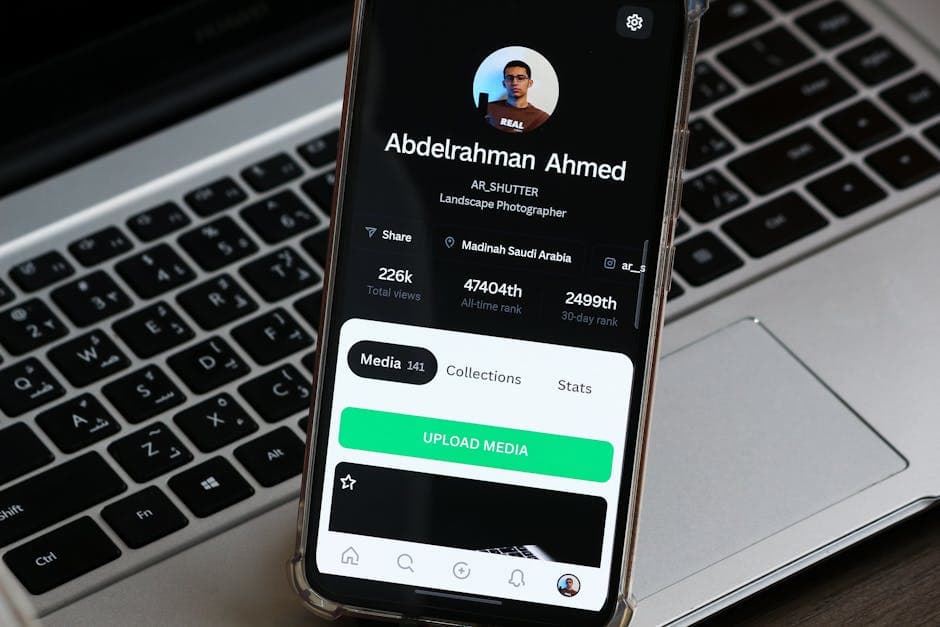
• Sign in to the Google account that manages your restaurant. • Open your Business Profile in Search or Maps and select Add photo. • Upload in the recommended sequence above. Double-check crops in the thumbnail grid. • Add context in captions where available (keep it short: item name and a brand note). • After publishing, view your listing on a phone and a desktop to confirm everything reads well.
Related: Optimize Core Details: Name, Address, Phone, Delivery Area, Accessibility
Photos go stale faster than menus. A simple upkeep rhythm keeps your listing relevant and avoids mismatched expectations for guests.
• Replace any photo that no longer reflects current plating, glassware, or decor. • Add 1–2 images of rotating specials or seasonal decor. • Review the first six thumbnails—are they still your strongest sellers?
• Encourage happy diners to share a photo and tag your restaurant on social—fresh signals and authentic angles help. • Monitor new customer photos on your profile. Thank guests in replies where appropriate and address clear inaccuracies politely.
• Watch taps on Call, Directions, and Order in your Business Profile performance view. • Track table turns and order volume on days after major photo updates to spot patterns. • Note which dishes appear most in customer photos—consider promoting them in your QR code menu and staff recommendations.
Photos set the expectation; your digital menu and ordering flow should deliver it instantly. That’s where EasyMenus helps you close the loop from discovery to decision.
With EasyMenus, you can present the same dishes and visuals guests saw on Google, then let them order for dine-in, pickup, or delivery in a few taps. Real-time updates mean you can swap photos or mark an item out-of-stock during a busy service and keep the experience consistent everywhere. Secure Stripe payments, order confirmations, and tracking reduce friction for guests and staff alike.
If you already have a PDF or printed menu, EasyMenus’ AI-powered menu import can extract items and prices fast, so you can attach great photos without restarting from scratch. Support for 16 languages helps you serve tourists who discovered you on Google Maps and need a multilingual menu.
• Match dish names on your Google photos to the names in your EasyMenus digital menu for clarity. • Use the same hero shot for your top-selling item across GBP, your QR code menu, and online ordering. • Keep brand colors and your logo consistent across your listing, website, and menu themes. • Update photos and menu items simultaneously—changes go live in seconds with EasyMenus.
Your restaurant’s Google Business Profile is a visual storefront. Lead with a tight, on-brand set that proves quality (logo and exterior), sparks appetite (signature dishes and drinks), and builds trust (team and ambiance). Keep file prep simple—JPG for food, PNG for logos, square-friendly crops, consistent color—and upload in a sequence that sells within seconds. Refresh monthly so what people see on Maps matches what arrives at the table. Close the loop by aligning those same visuals with your EasyMenus digital menu and online ordering. When discovery, branding, and ordering all agree, guests choose you faster—and come back.