
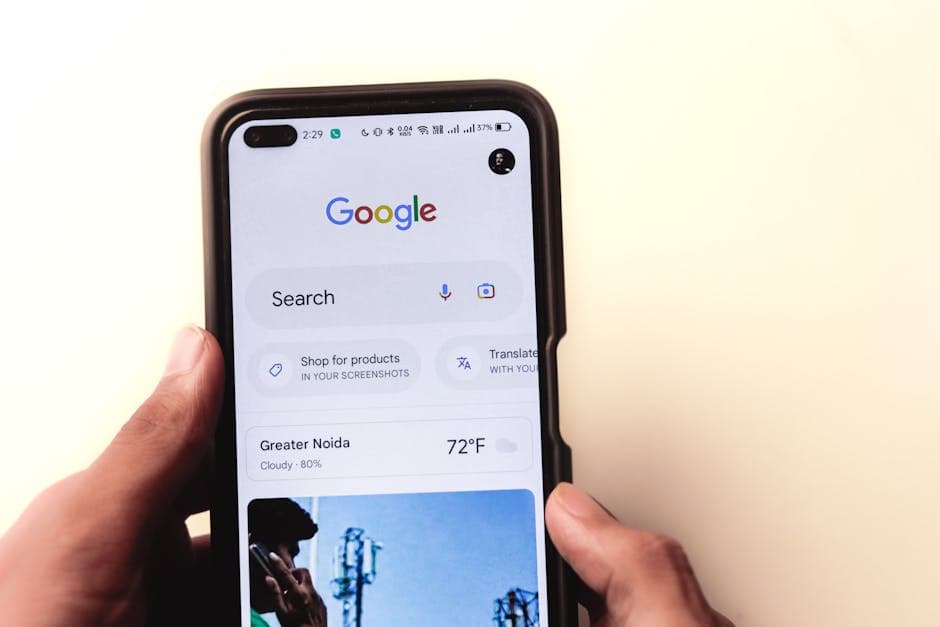
Why Google Business Profile matters for restaurants in 2026
When a hungry guest searches “best tacos near me” or navigates on Google Maps, your Google Business Profile (GBP) is the first impression. It shapes whether people call, get directions, check your menu, or tap “Order online.” For many restaurants, it’s the highest-visibility, highest-intent channel because it serves diners close by who are ready to decide now. A complete, accurate profile earns trust. Clear hours prevent frustration. Right categories ensure you appear in the correct searches. Strong photos and up-to-date menu links drive conversions. Done well, GBP reduces wasted calls during the dinner rush (“Are you open?”) and moves more guests from search to seat—or to confirmed pickup/delivery. Your website and online ordering page do the heavy lifting after the click. If you use EasyMenus for your digital menu and online ordering, you can link those pages directly from your profile so guests immediately see today’s items, real-time updates, and secure Stripe-powered checkout. Keep GBP precise; let your EasyMenus pages convert.
What guests see first on Google Maps
Searchers compare nearby options at a glance: star rating, review count, open/closed label, price level, photos, and action buttons like Call, Directions, Website, and sometimes Order or Reserve. Your goal is to make every element accurate and confidence-inspiring.
Actions that drive revenue
The most valuable taps are Directions (dine-in), Call (pre-visit questions or phone orders), Website/Menu (research), and Order Online (pickup/delivery). Make sure these links go to fast pages that load cleanly on mobile. EasyMenus pages are performance-optimized to minimize bounce and help guests complete orders quickly.
Relevance, distance, and prominence
Google considers category relevance, proximity to the searcher, and overall prominence (reviews, completeness, consistency across the web). You control completeness and consistency—two areas where restaurants often slip due to changing hours, seasonal menus, and staff turnover.
Keep details current without extra work
Use EasyMenus to update menu items, prices, or specials once—changes are live in seconds on your digital menu and online ordering. Then make quick edits to GBP for hours and attributes so everything matches. That alignment prevents no-shows, complaints, and order cancellations.
How it works: set up your Google Business Profile step-by-step
Follow these restaurant-specific Google Business Profile steps to go from discovery to verification to a profile that wins guests. Set aside 45–60 minutes for a first build, plus time for verification.
Learn more: Claim and Verify Your Restaurant on Google Maps: Step-by-Step
1) Create or claim your listing
Search your restaurant name on Google Maps. If a location exists, select “Claim this business.” If not, go to Google Business Profile and create a new listing with your legal business name, exact street address, and primary phone.
2) Choose business type and address correctly
Restaurants serve customers at a physical location—enter your precise address and place the map pin on the right entrance. If you also deliver, you can add a service area (by city or ZIP/postal codes) without hiding your address.
3) Select a primary category
Pick the most specific accurate category (e.g., Italian restaurant, Sushi restaurant, Vegan restaurant). You can add secondary categories later to cover cuisines or formats like Pizza restaurant or Takeout restaurant.
4) Add contact, website, and menu links
Provide a direct phone number that staff can answer. Add your website URL. For Menu URL and Order Online, link to your EasyMenus digital menu or ordering page so guests see accurate items, multilingual options (16 languages), and secure Stripe checkout.
5) Set hours (regular, special, holidays)
Enter open/close times for each day. Add special hours for holidays or one-off events so the “Open now” label is correct. Align these with your EasyMenus dine-in, pickup, and delivery availability to avoid mismatched expectations.
6) Add attributes and amenities
Enable attributes like Dine-in, Takeout, Delivery, Wheelchair accessible entrance, and Payment options. Accurate attributes improve relevance and reduce phone interruptions about basics.
7) Upload logo and photos
Add a clean logo and compelling cover photo first, then interior, exterior, food, drink, staff, and ambiance shots. Aim for well-lit, recent images that reflect your current menu and vibe.
8) Request and complete verification
Verification may require a postcard, phone, email, or video verification. Follow the prompt and respond quickly. After verification, re-check every field, then monitor for suggested edits from the public and keep everything fresh.
Choose the right categories, attributes, and key actions
Your categories determine which searches you’re eligible to appear for, while attributes and action links help guests self-qualify and convert. Getting these right prevents invisible profiles and unnecessary calls during your busiest hours.
Learn more: Choose the Right Categories and Attributes for Your Restaurant
Primary vs. secondary categories
Start with the most specific, cuisine-led primary category (e.g., Thai restaurant). Add 1–3 secondary categories that reflect formats or specialties (e.g., Noodle shop, Vegetarian restaurant) without diluting focus. Avoid unrelated categories—over-broad listings confuse Google and diners.
Must-have attributes for restaurants
Enable Dine-in, Takeout, Delivery as applicable. Add Accessibility (entrance, restroom), Planning (reservations accepted), and Offerings (vegetarian options, halal options, gluten-free options) if they genuinely apply. Accurate attributes earn visibility for long-tail, high-intent searches.
Action links that convert
Menu URL should open your EasyMenus digital menu so guests can scan categories and prices quickly in a clean mobile view. Use the Order Online link for your EasyMenus ordering page so guests can choose pickup or delivery, pay via Stripe, and get order confirmations and tracking without calling.
Language access for tourists and locals
If you serve visitors, multilingual access is a conversion booster. EasyMenus supports 16 languages with high-quality AI translation and full editing control. Link this menu from GBP so guests can switch languages and order confidently.
Photo by Brett Jordan on Pexels
Hours that match reality: regular, special, and holidays
The “Open now” label is a deal-maker—or deal-breaker. Accurate hours reduce negative reviews and wasted trips. Treat hours as a living part of your Google Maps listing setup and update them anytime operations change.
Learn more: Set Hours, Special Hours, and Holiday Closures the Right Way
Regular hours
Set your weekly open/close times for each service. If you have split shifts (e.g., lunch 11:30–2:30, dinner 5:00–9:30), enter separate intervals. Confirm time zone and double-check AM/PM—small mistakes cause big headaches.
Special hours and holiday closures
Before every holiday or seasonal change, add special hours so Google shows the correct status. Do this for long weekends, private events, or staff training days. Add a brief Update post if you expect unusual demand or pre-orders.
Handling last-minute changes
When staff is short or inventory runs low, update hours promptly so walk-ins and delivery drivers aren’t surprised. If you know prep capacity will drop, reduce pickup/delivery windows in EasyMenus and update GBP if service modes change.
Keep online ordering in sync
Align dine-in/pickup/delivery availability in EasyMenus with your posted hours. With EasyMenus real-time updates and multi-service management, you can adjust prep times and capacity controls in seconds, then reflect any service-mode changes on GBP to avoid mixed signals.
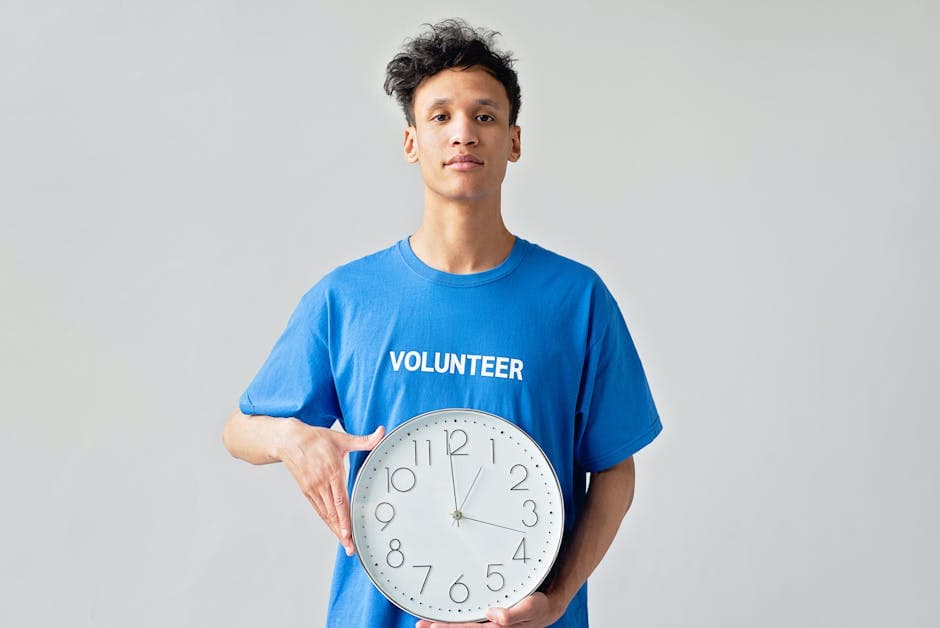
Photo by Mikhail Nilov on Pexels
Optimize core details: name, address, phone, delivery area, accessibility
Small inconsistencies—an old phone number here, a mismatched suite number there—can chip away at trust and discovery. Lock down the basics and keep them synchronized everywhere your restaurant appears online.
Learn more: Optimize Core Details: Name, Address, Phone, Delivery Area, Accessibility
Name, address, and phone (NAP) consistency
Use the exact same business name across GBP, your website, menus, and delivery marketplaces. Match street abbreviations and suite numbers. If you use a call-tracking number, add your main number as an additional phone to preserve consistency.
Fix the map pin and entrance
Drag the pin to the correct entrance so drivers and new guests don’t circle the block. Add clear exterior photos and signage so the place is recognizable from the street, especially at night.
Phone and messaging etiquette
Route the primary phone to a line the host or counter staff can answer quickly. Use a simple script for common questions (parking, wait time, dietary options) to reduce call time during peak hours.
Delivery area and service modes
If you deliver, add a service area that reflects real coverage by neighborhood, city, or ZIP/postal code. Keep it realistic so ETAs are reliable. On your EasyMenus ordering page, mirror the same delivery radius and minimums.
Accessibility and amenities
Enable accurate accessibility attributes (e.g., wheelchair accessible entrance). Add amenities like high chairs, outdoor seating, bar onsite, or free Wi‑Fi only if they are consistently available.
Best practices for ongoing management and measurement
A winning profile isn’t set-and-forget. Build lightweight routines that keep your listing accurate, persuasive, and measurable—without adding busywork to the dinner rush.
Learn more: Add Menu-Worthy Photos and Logos That Convert on Google Maps
Photos that convert (and how to keep them fresh)
Upload new food and drink shots monthly—prioritize bestsellers and seasonal items. Include one bright, sharp exterior photo, 3–5 interior angles, and hospitality moments (greeting at the host stand, plating on the pass). Avoid heavy filters; aim for true-to-life color and framing. If you want a deeper dive on composition, file types, and logo usage, see our dedicated photo guide.
Reviews and guest messaging
Reply to new reviews within 48 hours. Thank positive reviewers with specifics (dish names, staff mentions). For issues, apologize, explain the fix, and invite the guest back. Monitor Q&A for common questions and answer them publicly so others see the information.
Posts and promotions
Use Google posts to highlight limited-time menus, holiday hours, or pre-order windows. Link to your EasyMenus ordering page for fast checkout and to your multilingual menu for tourists.
Measure clicks and orders
Add UTM parameters to Website, Menu, and Order links so you can see GBP-driven sessions and revenue in analytics. Track call volume and direction requests to understand dayparts that deserve extra prep or staffing.
Weekly and monthly checklist
Weekly: confirm hours for the next 10 days, respond to reviews, upload 1–2 photos, verify your menu link is correct. Monthly: review categories and attributes, refresh cover photo if needed, audit NAP consistency, and compare GBP clicks to EasyMenus order volume.
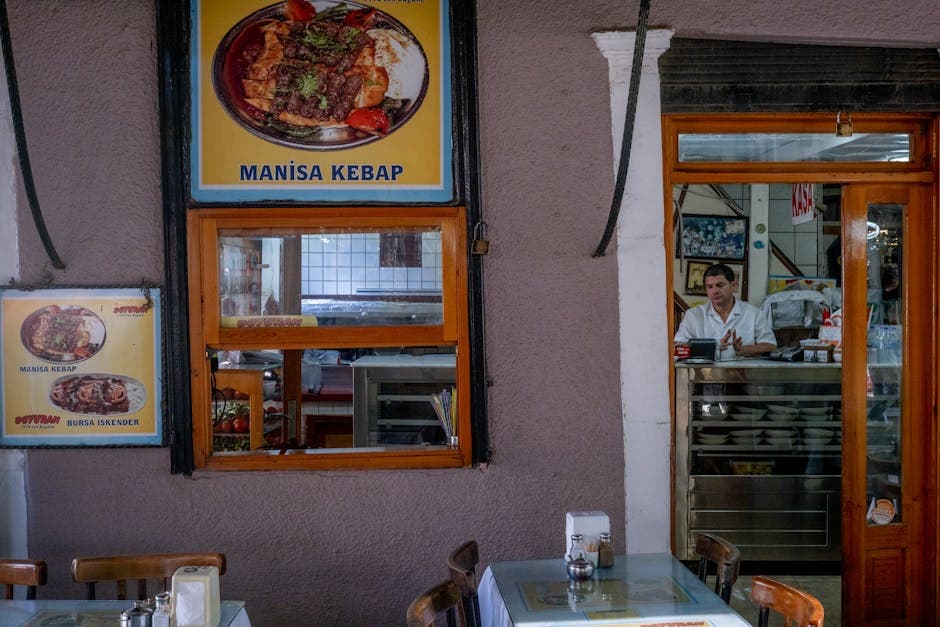
Photo by Doğan Alpaslan Demir on Pexels
FAQ: Google Business Profile for restaurants
Quick answers to the questions owners and managers ask most often about setting up and maintaining a restaurant Google Maps listing.
How long does verification take in 2026?
Most restaurants are verified within a few days, depending on the method (postcard, phone, email, or video). Initiate verification as soon as you complete core details and watch for follow-up instructions so you don’t miss the window.
Do I need a physical address if I only do delivery?
If you don’t serve customers at your location, you can set a service area and hide your address. If guests can dine in or pick up at your storefront, you must show your address and place the map pin accurately.
Should I link to “Order with Google” or my own ordering page?
Linking to your own EasyMenus ordering page keeps guests in your brand experience, supports multiple payment methods via Stripe, and lets you manage prep times and capacity. If third-party ordering links appear, ensure they don’t confuse guests or misrepresent hours and fees.
What if our hours change last minute?
Update special hours immediately and add a short Google post if the change affects popular times. In EasyMenus, adjust service availability and prep times so order ETAs remain accurate and guests aren’t surprised.
Which photos perform best for restaurants on Google Maps?
Bright, appetizing food shots of top sellers; a welcoming exterior; a clean, lively interior; and a clear hero image (cover). Avoid dark, blurry, or outdated shots. Refresh monthly so images match your current menu and season.
Can I manage multiple locations with one account?
Yes. Use one Google account to manage multiple locations, standardize categories and attributes, and assign location-level managers. Keep each profile’s hours, photos, and menu links specific to that location.
How do I handle duplicate or incorrect listings?
If you find a duplicate, request to “Suggest an edit” or claim and then mark as permanently closed if appropriate. For incorrect details or pin placement, submit edits with photos that prove the correct information.
Can I show a multilingual menu on my profile?
GBP fields are primarily single-language, but you can link to a multilingual digital menu. With EasyMenus, publish menus in 16 languages and include that link in your Menu URL so tourists and multilingual locals can browse and order confidently.
Conclusion
Your Google Business Profile is the gateway from search to seat—and from Maps to mobile checkout. Keep it complete, precise, and aligned with real operations. Use this guide to set categories and attributes that match your cuisine and service modes, maintain hours that reflect reality, and showcase photos that make diners hungry. Then link to a fast, reliable destination: your EasyMenus digital menu and online ordering. With AI-powered menu import, multilingual support, Stripe-secure payments, and real-time updates, you’ll reduce phone interruptions, prevent mismatched expectations, and turn more nearby searches into paid orders—night after night.
Ready to claim and verify your listing the right way?
Set hours once and avoid guest confusion year-round.