
Claim and Verify Your Restaurant on Google Maps: Step-by-Step
If you’re opening, rebranding, or finally getting serious about local search, claiming and verifying your Google Business Profile (GBP) is the fastest way to show up on Google Maps and capture high-intent diners. This guide gives restaurant-ready steps to claim your listing and pass verification on the first try—without postcard purgatory or video redo loops.
Pro tip: Use a single Google account with 2‑step verification for your restaurant and add a backup admin to avoid lockouts.
Most restaurants are eligible: if customers can visit your location (dine-in, takeaway window) or you travel to customers (delivery), you can create a Business Profile. Make sure your address and service area reflect the real world and that each physical location has only one profile. ([support.google.com](https://support.google.com/business/answer/3038177?utm_source=openai))
Avoid address pitfalls that trigger delays. Don’t use PO boxes or virtual offices. Co‑working is allowed only when your business has permanent signage, receives customers during posted hours, and is staffed by your team; if you display your address on Google, permanent on‑site signage is expected. ([support.google.com](https://support.google.com/business/answer/3038177?utm_source=openai))
• Google account with 2‑step verification enabled and access to your business email/phone. • Decide your business type for verification: storefront (dine‑in/pickup), service‑area (delivery only from a non‑public kitchen), or hybrid. • Photos you can capture during verification: exterior signage, street sign/building number, nearby landmarks; interior front‑of‑house and kitchen; POS terminal or KDS. • Proof of management you can show: unlocking the door, opening the cash drawer, accessing POS/back‑office areas. • On‑hand docs (only if prompted): business registration/license, utility bill, or invoices that match your profile name/address. Keep sensitive info out of frame.
Before you request verification, ensure your restaurant Name, Address, and Phone (NAP) exactly match what’s on your signage, website, and receipts. Small mismatches (Suite vs. #, St vs. Street) can trigger extra checks.
Don’t use a P.O. Box or unstaffed virtual office. Use your real, staffed location with permanent signage to avoid suspension.
Search your restaurant on Google or Maps. If you see your place, click “Own this business?” (Search) or “Claim this business” (Maps), then Manage now and follow the prompts. If no profile exists, go to business.google.com/add to add your restaurant and continue to verification. ([support.google.com](https://support.google.com/business/answer/2911778?hl=en&utm_source=openai))
1) On Google or Maps, search your exact restaurant name + city. 2) Open the Business Profile. 3) Click “Own this business?” (Search) or “Claim this business” (Maps) → Manage now. 4) Confirm you’re authorized and choose your role. 5) Review core details (name, address, phone) for accuracy. 6) Proceed to verification (methods vary by location/category). ([support.google.com](https://support.google.com/business/answer/2911778?hl=en&utm_source=openai))
Go to business.google.com/add → Add your business to Google → follow prompts for name, category, address/service area, and contact details → select the verification option offered. ([support.google.com](https://support.google.com/business/answer/2911778?hl=en&utm_source=openai))

For a comprehensive overview, see our guide: Google Business Profile Setup for Restaurants (2026 Guide)
Google decides which verification methods you’ll see based on category, public info, and region; sometimes more than one method is required. Common options include: video recording, live video call, postcard by mail, phone/text, email, and, in limited cases, instant verification (e.g., via Search Console) or bulk verification for chains. After you complete verification steps, Google’s review can take up to five business days. Postcards typically arrive within about 14 days. Avoid editing name, address, or category while waiting; postcard codes expire after 30 days. ([support.google.com](https://support.google.com/business/answer/6300665?hl=en&utm_source=openai))
Record and upload one continuous, unedited video (≥30 seconds) from your Business Profile on a mobile device. Show: 1) Location proof — street/building numbers, nearby landmarks, or neighboring businesses; 2) Business proof — exterior signage and a matching business name; 3) Management proof — access to employee‑only areas (unlocking the door, opening a cash drawer, accessing POS, kitchen/storage). Google reviews video submissions, typically within five working days; if rejected, you’ll see specific reasons and can re‑record. Avoid capturing sensitive info or other people’s faces. ([support.google.com](https://support.google.com/business/answer/14271705?utm_source=openai))
If postcard is offered, confirm your mailing address, request the code, and wait—most codes arrive within about 14 days. While waiting, do NOT change your business name, address, or primary category, and do NOT request another code; doing so cancels the first code and prolongs the process. Codes expire after 30 days. Enter the code in your profile as soon as it arrives. ([support.google.com](https://support.google.com/business/answer/6300665?hl=en&utm_source=openai))
Confirm you can answer the business line (no IVR) or access the listed email. Enter the code immediately and keep it private. If you don’t see these options, you can’t force them—use the method Google presents or contact support after an attempt if you’re blocked. ([support.google.com](https://support.google.com/business/answer/6300665?hl=en&utm_source=openai))
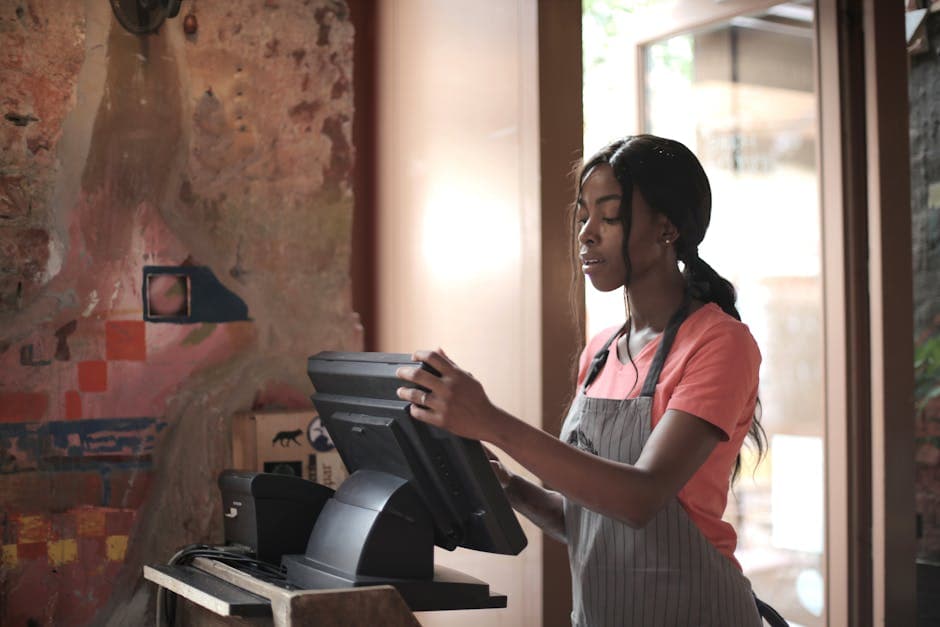
Quick win: Record video verification during business hours with signage, street number, and POS/kitchen access ready to show.
If another person (former manager, agency, previous owner) already verified the listing, request ownership: go to business.google.com/add, search your restaurant, select it, and choose Request access. The current owner has three days to respond. If there’s no response, you may be offered the option to verify and claim the profile yourself; note that this option isn’t guaranteed. ([support.google.com](https://support.google.com/business/answer/4566671?hl=en&utm_source=openai))
Service‑area restaurants without a public storefront may need to contact Google to request ownership transfer. Follow the prompts and specify “Transfer ownership of listing” if directed. ([support.google.com](https://support.google.com/business/answer/4566671?hl=en&utm_source=openai))
• Your role (owner/manager) and business email at the restaurant’s domain. • Evidence you manage the location (e.g., photos of signage, kitchen/back office access, POS access). • Documents that match the profile’s business name/address (registration, utility bill) if asked. • A calm, factual explanation (e.g., “We purchased the restaurant on [date]; prior manager is unreachable.”)
Once you complete the verification step, Google may take up to five business days to review and activate your profile; you’ll receive a confirmation email when you’re verified. ([support.google.com](https://support.google.com/business/answer/6300665?hl=en&utm_source=openai))
Move quickly while you’re top‑of‑mind. Add accurate hours (including special hours), confirm categories and attributes, write a clear description, upload fresh photos, and add your menu and online ordering links. If you use EasyMenus, add your digital menu URL and your ordering link so guests can browse and order from your phone‑optimized menu right from your profile. EasyMenus supports multilingual menus (great for tourist areas), secure Stripe payments, and real‑time menu updates—so sold‑out dishes and holiday hours don’t confuse guests.
• Set regular hours, plus special hours for holidays/events. • Confirm primary + secondary categories (e.g., Restaurant, Pizza restaurant) and relevant attributes (e.g., dine‑in, curbside pickup, wheelchair‑accessible entrance). • Add menu and ordering links; ensure they match your website details. • Upload 8–12 quality photos: exterior (day/night), dining room, bar, hero dishes, team. • Add a concise business description (what you serve, vibe, neighborhoods delivered). • Turn on messaging only if you can respond promptly during open hours. • Share your profile link on your website, EasyMenus QR code menu, and social profiles. • Ask a few recent happy customers for honest reviews (no incentives).
Related: Set Hours, Special Hours, and Holiday Closures the Right Way
Related: Optimize Core Details: Name, Address, Phone, Delivery Area, Accessibility
Claiming your Google Business Profile doesn’t have to be a drawn‑out process. Confirm eligibility, claim or create the listing cleanly, choose the verification method offered, and show Google exactly what it needs the first time. Once you’re verified, lock in accurate hours and details, then point diners to a fast, mobile‑friendly menu and ordering flow. With EasyMenus, your QR code menu, multilingual menu pages, and secure Stripe‑powered ordering link make your profile more useful—so more map views turn into tables and tickets.